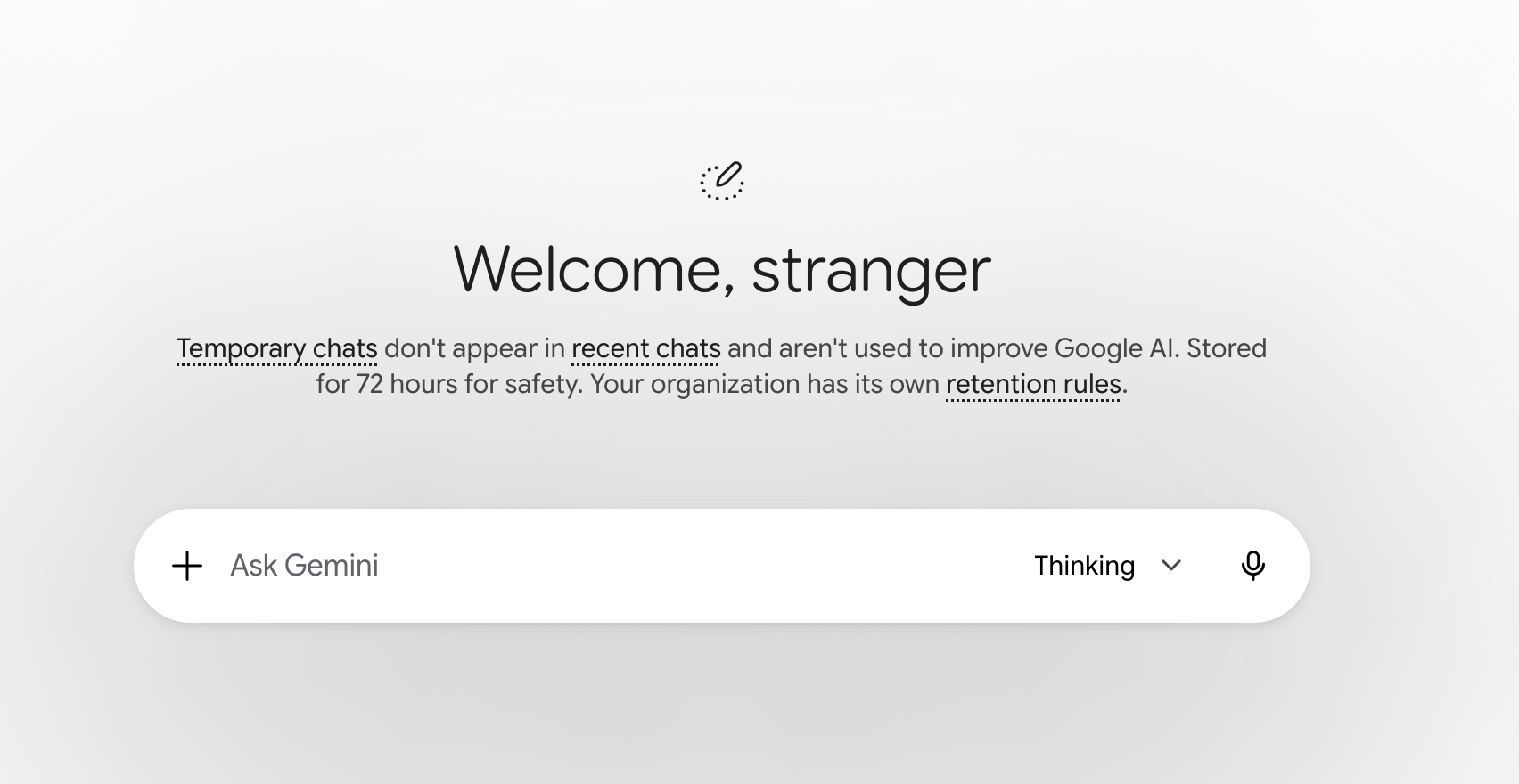
You can now start a temporary chat or delete existing chats in the Gemini app.
Temporary Chat
Temporary chats are not saved to your Gemini chat history.
To start a temporary chat:
- Go to the the Gemini app.
- Click the Temporary Chat
 in the upper-right corner.
Delete a Chat
To delete an existing chat:
- Go to the the Gemini app.
- At the top, click on the Menu icon
.
- Under Recent, click the chat you want to delete.
- At the top, tap More
and then Delete
.
Learn more about starting a temporary chat and deleting chats in Gemini.
Availability
- These features will be available for all UNLVMail (@unlv.edu) accounts and Rebelmail accounts (@unlv.nevada.edu).